
Inhaltsverzeichnis
- What belongs in a customer database?
- 1. Master data
- 2. Interaction data
- 3. Transaction data
- 4. Qualification data
- 5. Service data
- Customer database in Excel vs. Access vs. cloud CRM
- Which tool when?
- The 5 steps to build a professional customer database
- Step 1: Define goals and data fields
- Step 2: Collect existing data
- Step 3: Clean and deduplicate
- Step 4: Pick a system and migrate
- Step 5: Establish maintenance routines
- How Salesforce works as a customer database
- Next step: professionalise your customer database
- Frequently asked questions
A customer database is the central store of all the information about your business contacts — contact data, communication history, buying behaviour, and open offers. It’s the foundation of any systematic customer management.
99.7% of Swiss companies are SMBs — but according to HubSpot (2024), 40% of sales reps still manage their contacts in spreadsheets or email inboxes. The result: according to the Validity State of CRM Data Management Report (2025), 37% of surveyed companies have lost revenue to poor data quality. The key isn’t the software — it’s the structure you give your data from the start.
Das Wichtigste in Kürze
- Data quality decides: 37% of companies lose revenue to bad customer data, according to Validity (2025) — duplicates, stale entries, and missing fields cost more than most SMBs realise.
- 5 data layers: A professional customer database covers master data, interactions, transactions, qualification, and service — all linked in one place.
- Step-by-step build: 5 steps from first contact to a professional database — without a mammoth project.
This article shows which fields belong in a professional customer database, compares Excel, Access, and cloud CRM as platforms, and walks you through five concrete steps to build it.
What belongs in a customer database?
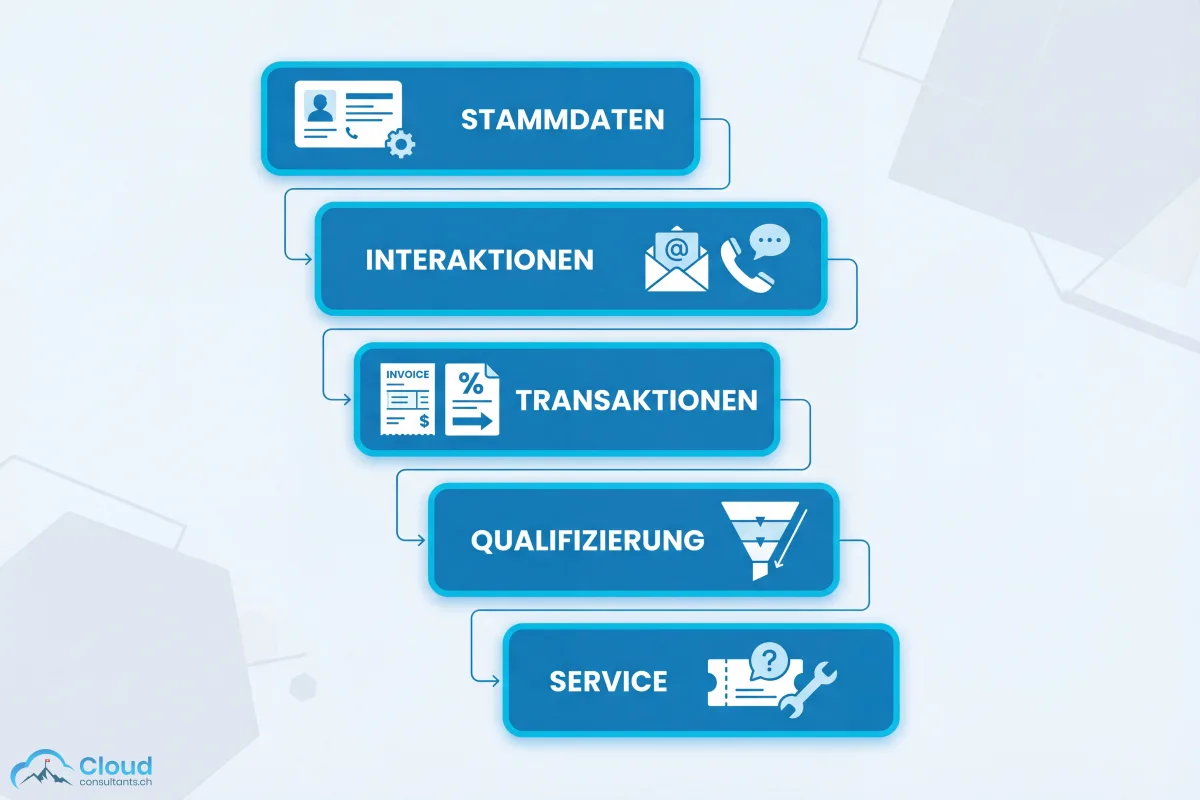
A customer database is more than a digital address book or customer card file. It links five data layers into a complete picture of every business contact:
1. Master data
The basics — what used to live on a physical customer card:
- Company name and legal form
- Contact person with role (decision maker, influencer, user)
- Contact details: phone, email, address
- Industry and company size
- Customer number or internal ID
2. Interaction data
When did who talk to the customer — and about what?
- Emails (automatically assigned)
- Calls and their summaries
- Meetings with attendees and outcomes
- Notes from in-person conversations
3. Transaction data
The economic picture: what does this customer buy, what’s still open?
- Offers (open, won, lost)
- Orders and invoices
- Revenue history and buying behaviour
- Contract terms and renewal dates
4. Qualification data
Where does this contact sit in the sales process?
- Lead source (website, trade fair, referral)
- Stage in the sales funnel
- Expected close value and date
- Next planned step
5. Service data
How satisfied is the customer — and is anything open?
- Support cases and their status
- Complaints and resolutions
- Customer-satisfaction scores
- Contractual SLAs
The power of a professional customer database lies in linking these layers. When a sales rep calls a customer, they see not just the phone number — but the last order, the open service case, and the next scheduled appointment. According to McKinsey, data-driven companies are 23 times more successful at acquiring customers and 6 times better at retention than their competitors.
Customer database in Excel vs. Access vs. cloud CRM
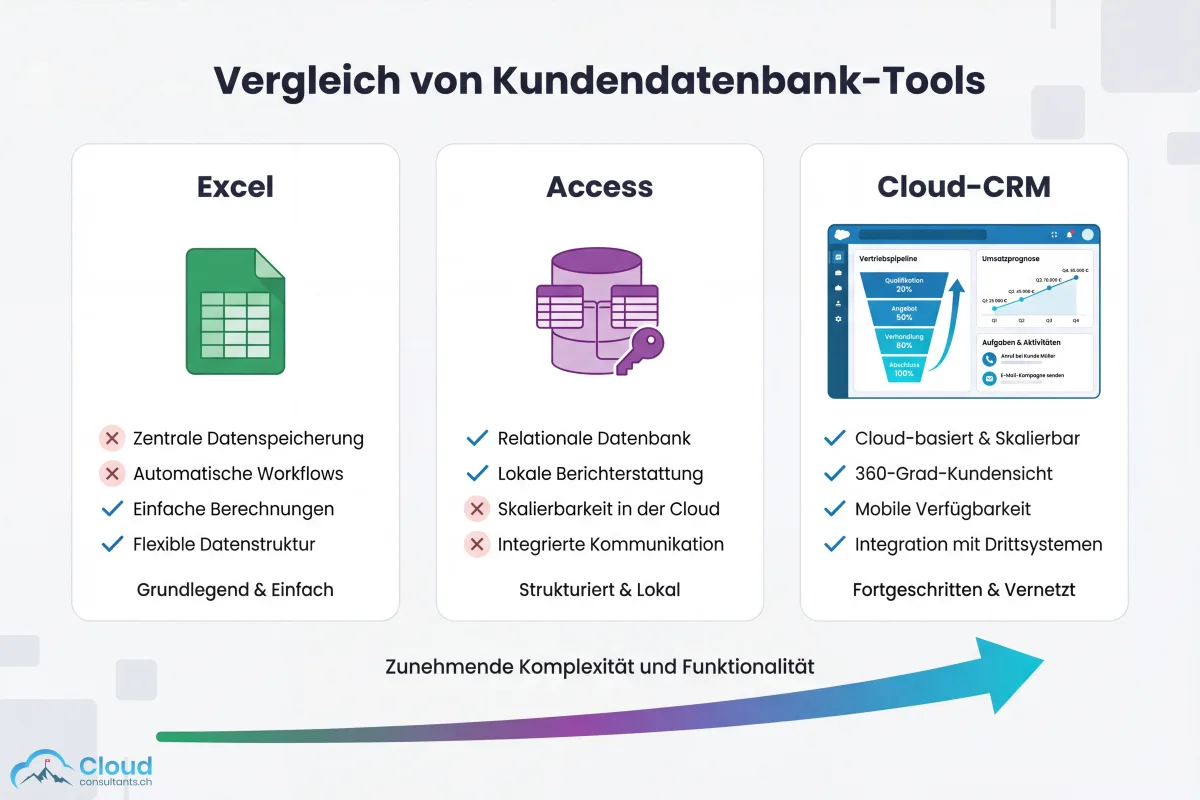
Not every contact-management setup needs to start as an enterprise CRM. The right solution depends on team size, contact volume, and process requirements:
| Criterion | Excel / Google Sheets | Microsoft Access | Cloud CRM (e.g. Salesforce) |
|---|---|---|---|
| Fits | 1–2 people, under 100 contacts | 1–5 people, up to 1,000 contacts | From 3 people, scales without limit |
| Cost | Free | One-off (Office licence) | From $25/user/month |
| Multi-user access | Limited (version conflicts) | Local only, no cloud | Real-time, role-based, from anywhere |
| Duplicate detection | None | Limited (manual queries) | Automatic |
| Automation | None | Limited (macros) | Workflows, reminders, emails |
| Reporting | Manual pivot tables | Reports and forms | Real-time dashboards |
| Communication history | Not possible | Not integrated | Email, phone, meetings — automatically |
| Scalability | Breaks around ~100 contacts | Breaks around ~1,000 contacts | From 50 to 500,000 contacts |
| Data protection | Barely auditable | Limited | Audit trail, consent management, deletion workflows |
Which tool when?
Excel is enough as long as one person maintains a manageable contact list and you don’t need to track opportunities. For the concrete warning signs that spreadsheets are at their limit, see our article on customer management with Excel.
Access was long the in-between option — more structure than Excel but without cloud access or integration with modern communication tools. Today, Access is rarely the right choice for new customer databases: cloud CRMs offer more functionality with less maintenance.
Cloud CRM is the standard for growing businesses. According to DemandSage (2025), 91% of companies with more than ten employees already use a CRM. The reason: a CRM connects contact management, communication history, pipeline management, and reporting in one system — instead of in four different tools.
The 5 steps to build a professional customer database
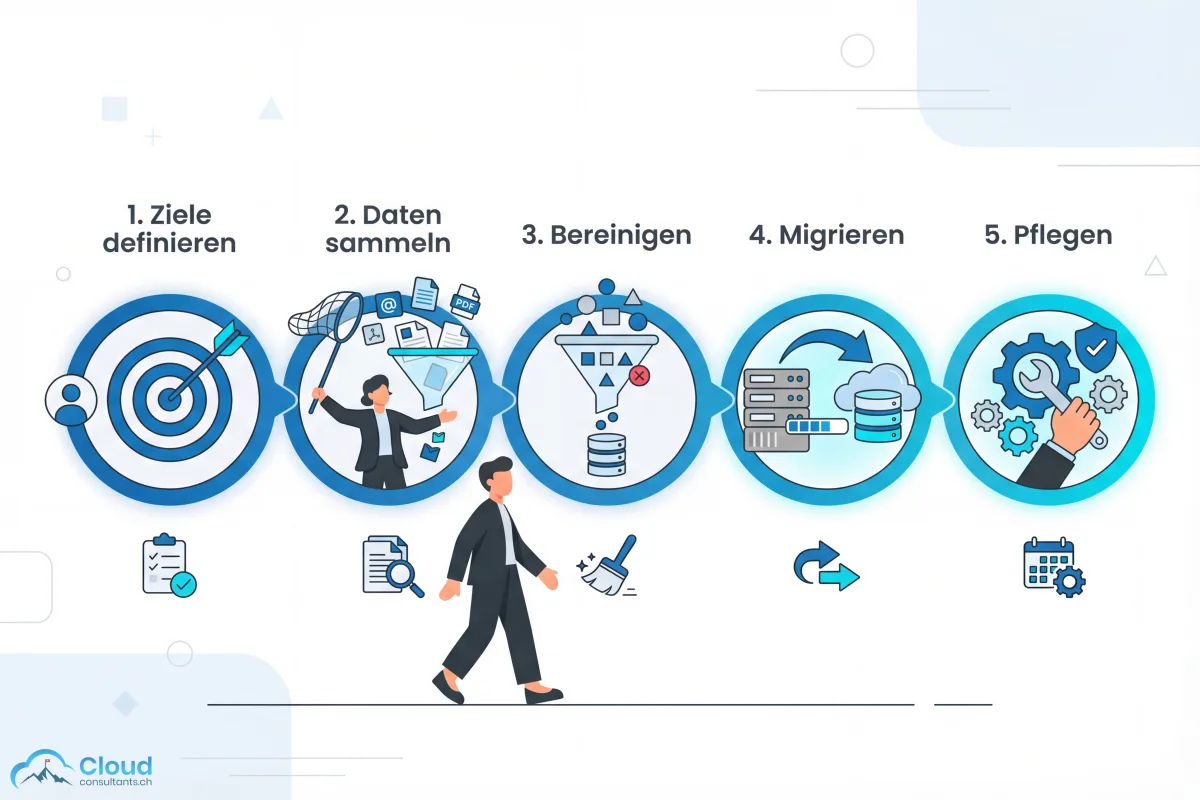
Step 1: Define goals and data fields
Before picking a tool, answer two questions:
- What do you need the database for? Just contact management? Pipeline tracking? Reporting to leadership?
- Which fields are required? Define the minimum field set per contact — everything else comes later.
A typical starter set for an SMB:
| Field | Required? | Example |
|---|---|---|
| Company name | Yes | Muster AG |
| Contact person | Yes | Anna Keller, Head of Sales |
| Yes | a.keller@muster.ch | |
| Phone | Yes | +41 44 123 45 67 |
| Lead source | Yes | Website form |
| Stage | Recommended | Qualification |
| Next step | Recommended | Demo on Mar 15 |
| Estimated value | Optional | CHF 12,000 |
Instead of a 50-page requirements doc, a focused set is enough for the first rollout. Requirements grow over time anyway — start lean and iterate.
Step 2: Collect existing data
Customer data is rarely in one place. Typical sources in an SMB:
- Excel sheets (often several versions)
- Outlook or Gmail contacts
- Email inboxes (hidden information in email threads)
- ERP systems
- Business cards and handwritten notes
- LinkedIn contacts
Build an inventory: which source contains how many records and which fields? That’s the basis for the field mapping later.
Step 3: Clean and deduplicate
This is the most time-consuming but most important step. According to a Plauti analysis of over 12 billion Salesforce records (2021), more than 45% of manually entered records are duplicates. In long-lived Excel lists, the rate is typically even higher.
Cleanup checklist:
- Identify duplicates and merge them (same contact, different spellings)
- Remove stale entries (company no longer exists, contact person has moved on)
- Standardise formats (phone numbers, postcodes, company names)
- Fill in required fields or set aside records below the minimum
- Document data quality (how many entries were cleaned, merged, deleted?)
Plan at least 30% of project time for cleanup. Clean data at launch saves months of follow-up work.
Step 4: Pick a system and migrate
Based on the goals from Step 1 and the data volume from Step 2, choose the right tool (see comparison table above). For most growing SMBs, a cloud CRM is the future-proof option.
Migration in three sub-steps:
- Field mapping: which Excel column maps to which CRM field?
- Test import: import 50 contacts, check the assignments, fix errors
- Full import: after successful validation, migrate the full dataset
Step 5: Establish maintenance routines
A customer database is only as good as its upkeep. According to the Validity Report (2025), 76% of surveyed CRM users say less than half of their data is accurate and complete. The cause: missing maintenance routines after rollout.
Four routines that make the difference:
- Define entry standards: how is a new contact captured? Which fields are required? Which naming conventions apply?
- Clarify ownership: who maintains which records? Who regularly audits data quality?
- Regular cleanup: quarterly duplicate check and refresh of stale entries
- Use automation: duplicate detection, required-field validation, and reminders for incomplete records — features a CRM offers and Excel doesn’t
How Salesforce works as a customer database
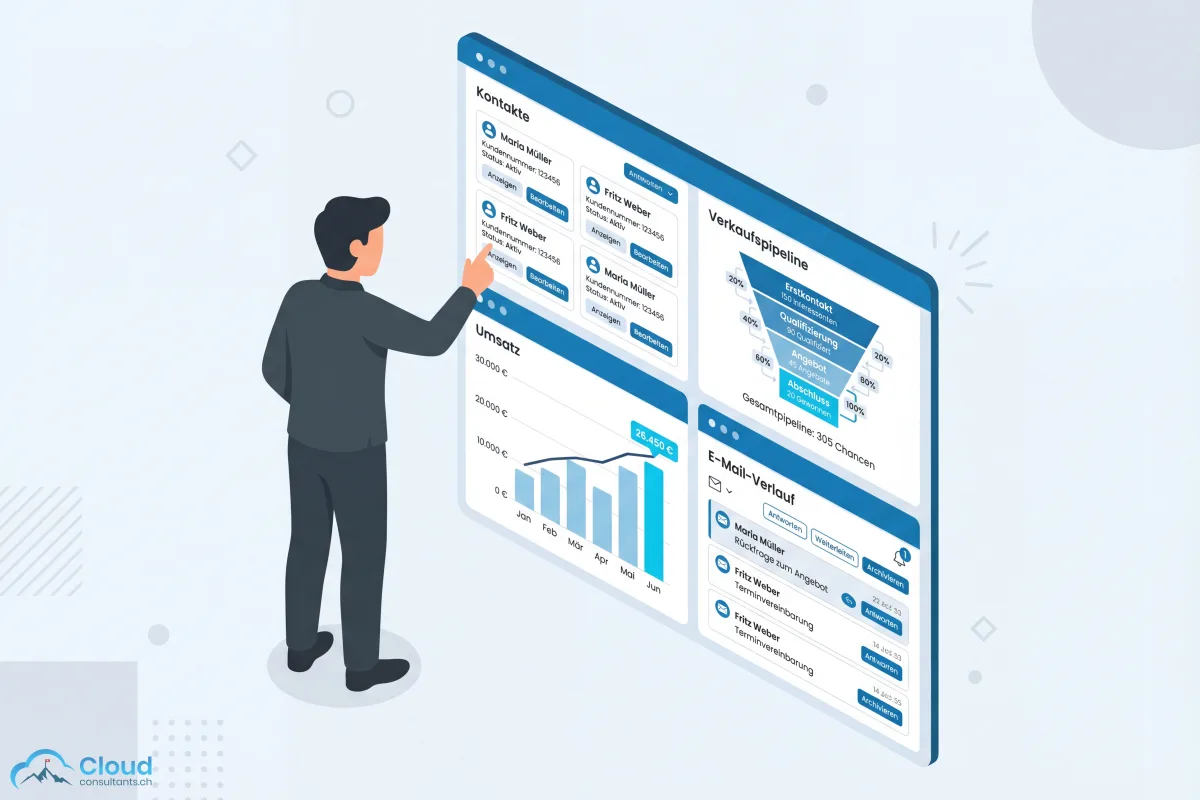
Salesforce is the most-used CRM in the world — according to DemandSage (2025), 31% global market share. For SMBs building their first professional customer database, Starter Suite (from $25/user/month) is the entry point.
What Salesforce delivers as a customer database:
- Accounts and contacts: structured company data with any number of contacts, roles, and hierarchies
- Automatic duplicate detection: the system flags potential duplicates when new records are created — a problem that systematically goes unnoticed in Excel lists
- Communication history: Outlook or Gmail integration automatically assigns emails to the right contact
- Opportunities: every potential deal has a stage, a value, and a next step — the pipeline becomes visible in real time
- Dashboards: pipeline value, open tasks, activities per rep — at a glance, automatically refreshed
- Access controls: role-based permissions down to field level — auditable and aligned with data-protection law
A typical scenario: an SMB with 8 sales reps manages 500 contacts across three Excel files. After migration to Salesforce, a single central database with cleaned data exists. Every rep sees their contacts, open opportunities, and the communication history. Leadership has a reliable pipeline view for the first time.
If you want to unify customer data beyond the CRM — across channels including anonymous website visits and marketing data — our German article on the Customer Data Platform (CDP) is the next step after the professional customer database.
Next step: professionalise your customer database
Still running your customers in Excel or Outlook? Our Salesforce Quick Start takes you from spreadsheet to professional CRM in 30 days — including data migration, configuration, and team training.
Instead of a classic implementation project (3–6 months), we deliver what matters in 30 days. And if your team isn’t productive after 30 days, we keep working — at no extra cost.
Frequently asked questions
What is a customer database?
A customer database is the central store of all the information about your business contacts — contact data, communication history, buying behaviour, and open offers. It's the foundation for systematic customer management and lets you steer customer relationships with real data.
What data belongs in a customer database?
A professional customer database contains master data (company, contact, contact details), interaction data (emails, calls, meetings), transaction data (offers, orders, invoices), qualification data (lead source, sales stage), and service data (open enquiries, satisfaction).
How do I build a professional customer database?
In five steps: first define goals and data fields, then collect existing data from all sources, clean and deduplicate it, choose the right system, and finally migrate, train, and maintain it continuously.
When should I switch from Excel to a CRM system?
As soon as more than two people regularly work with customer data, the contact list grows past 50–100 records, or you need automated reminders and pipeline tracking. According to a Plauti analysis, more than 45 percent of manually entered CRM records are duplicates — a problem that's even more severe in Excel lists.
What does a professional customer database cost?
Simple cloud tools start free; professional CRMs like Salesforce Starter Suite start at $25 per user per month. Implementation with a guided Quick Start starts at CHF 5,000. According to Nucleus Research, every dollar invested in CRM returns on average $3.10.