
Inhaltsverzeichnis
- Why Excel is fine to start with
- The 7 warning signs that Excel isn’t enough anymore
- 1. Version conflicts and overwritten data
- 2. Undetected duplicates
- 3. No automated reminders
- 4. No real-time reporting
- 5. Missing access controls and data-protection risk
- 6. No shared communication trail
- 7. Formula errors with real consequences
- What a professional system gives you
- From Excel to CRM in 5 steps
- Step 1: Inventory
- Step 2: Clean the data
- Step 3: Define field mapping
- Step 4: Test import and validation
- Step 5: Train the team and switch over
- Next step: from spreadsheet to professional CRM
- Frequently asked questions
Customer management in Excel works — until your company grows. From 50–100 contacts onward, spreadsheets hit their ceiling: no automation, no access controls, no reporting, and the constant risk of losing data through accidental overwrites.
According to DemandSage (2025), 91% of companies with more than ten employees already run a CRM. But many SMBs stick with Excel too long — not out of conviction, but out of habit. According to a meta-study by Poon et al. (2024), 94% of all business spreadsheets contain errors. The problem isn’t Excel itself — it’s the moment Excel is declared “the customer-management system.”
Das Wichtigste in Kürze
- Error risk: 94% of all business spreadsheets contain errors — according to Poon et al. (2024). The more people work in the same file, the higher the risk.
- The critical threshold: from 50–100 active contacts and more than two people in customer-facing roles, Excel becomes the bottleneck — no automation, version conflicts, no real-time reporting.
- The economic tipping point: according to Nucleus Research (2024), every dollar invested in CRM returns on average $3.10. The switch pays off faster than you'd expect.
This article shows the seven concrete warning signs that your Excel-based customer management is running out of road, compares the alternatives, and lays out the path from spreadsheet to professional system.
Why Excel is fine to start with
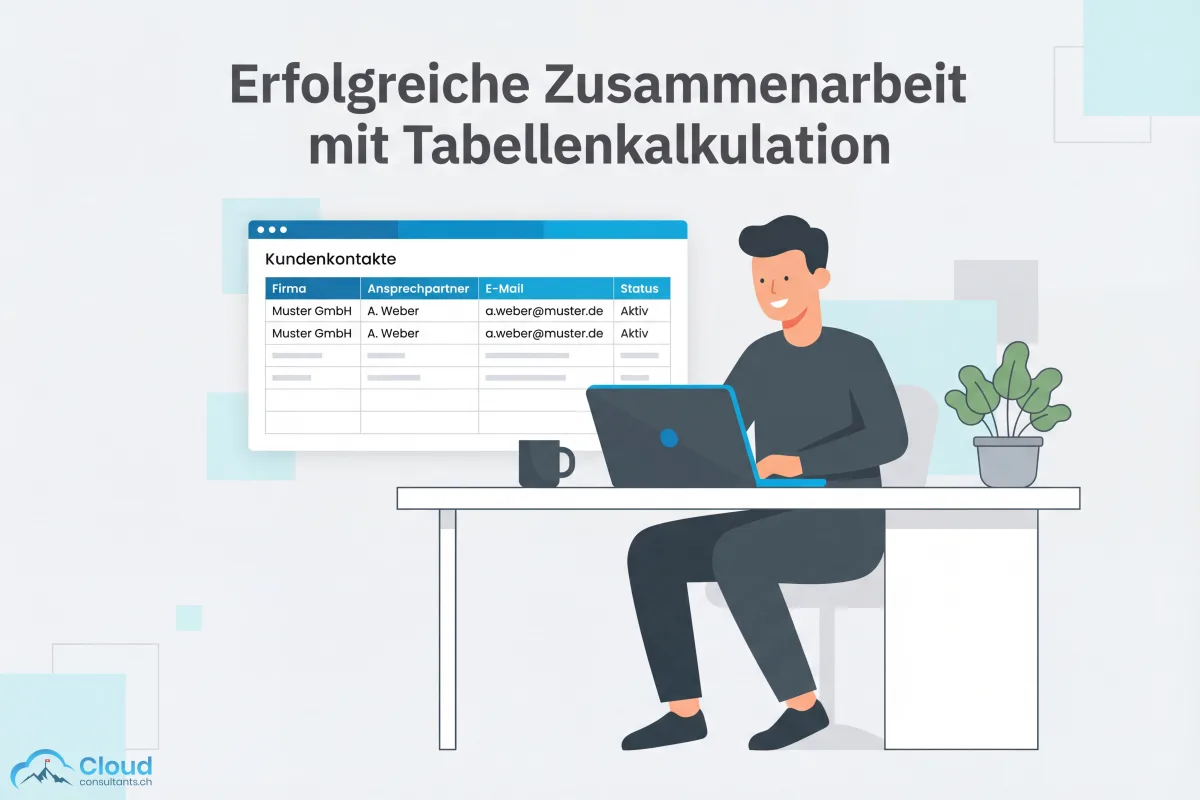
Excel deserves credit. For a small company with a handful of contacts, a spreadsheet is a sensible starting point. It’s free, familiar, and ready to use. Typical scenarios where Excel works:
- 1–2 people have customer contact
- Fewer than 50 active contacts are maintained
- No sales process with multiple stages (qualification, offer, negotiation)
- No simultaneous access to the same file is needed
- No reporting to leadership or investors is required
At that stage, a well-structured Excel customer list is actually better than a poorly configured CRM. The problem doesn’t start with Excel — it starts with growth.
The 7 warning signs that Excel isn’t enough anymore
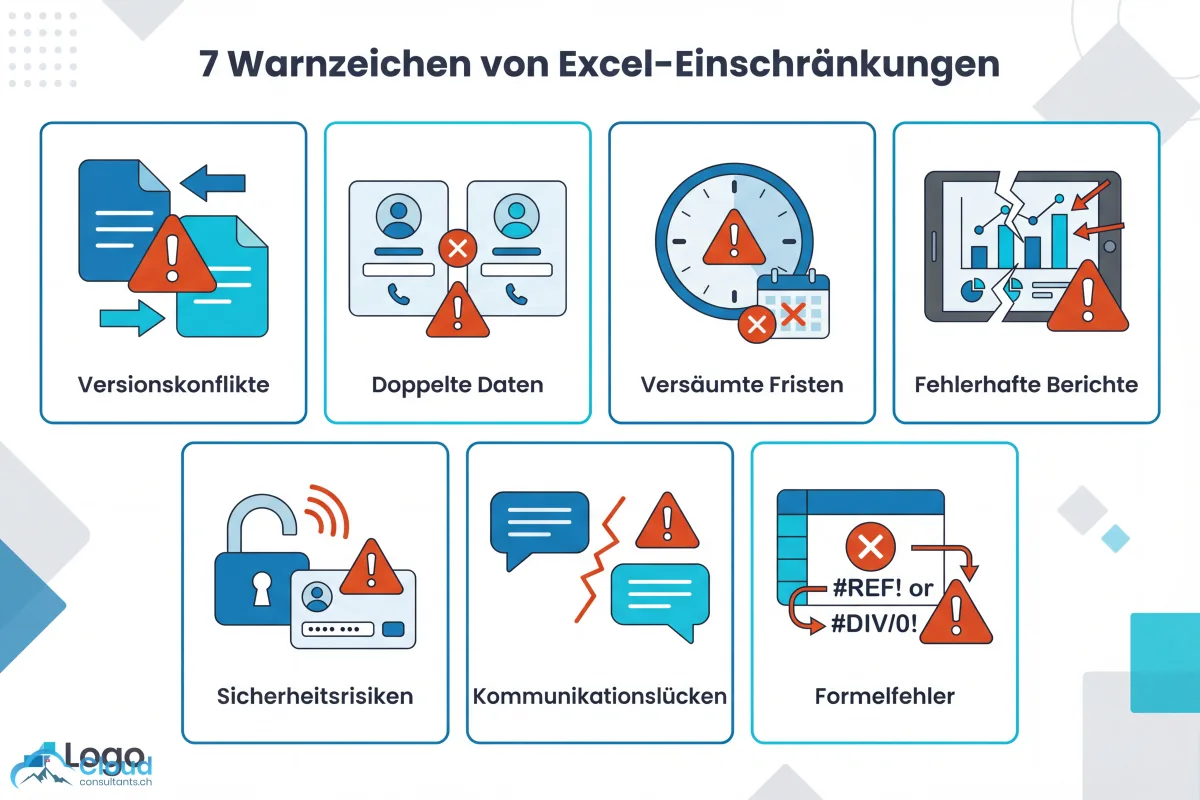
These symptoms rarely all show up at once. But when two or more apply, the economic tipping point has arrived.
1. Version conflicts and overwritten data
Several people work on the same file — stored locally, emailed around, or on a shared drive. One employee opens the file in the morning, another saves their changes at midday. Result: the morning version overwrites the midday version. Contacts disappear, notes are lost. Even when editing together in OneDrive or Google Sheets, you don’t get a reliable field-level change history.
2. Undetected duplicates
The same customer gets entered by two employees — once as “Müller AG”, once as “Mueller AG, Zürich”. Excel doesn’t detect duplicates. Over months, you build a database where no one knows which record is current. According to a Capterra study (2023), 40% of companies name inefficiency as the main reason for switching from spreadsheets to a CRM — duplicates are one of the biggest drivers.
3. No automated reminders
A prospect asks for an offer. The sales rep writes “follow up in 3 days” in their Excel list. Three days later, nobody remembers — and the lead goes to a competitor. Excel has no built-in reminders, no task assignment, and no automated workflows. According to the Salesforce State of Sales Report (2023), reps spend only 28% of their working time actively selling — the rest is lost to admin, data entry, and manual follow-up.
4. No real-time reporting
Leadership asks: “How much revenue are we expecting next quarter?” In an Excel world, that means pulling data from multiple sheets, building pivot tables, and validating manually. It takes hours — and the result is a snapshot that’s already stale by the next call. A CRM answers in real time, on a dashboard, automatically refreshed.
5. Missing access controls and data-protection risk
Excel files have no granular permissions. Anyone with access to the file sees everything — from private customer contacts to internal margins. That isn’t just a privacy issue, it’s a concrete risk under data-protection law: Excel files are hard to audit, offer no deletion logs, and make the “right to be forgotten” substantially harder.
6. No shared communication trail
A customer calls. The colleague who normally handles them is on holiday. The stand-in opens the Excel list — and sees a phone number, an address, and a date of last contact. What was discussed, what offers are still open, whether there was a complaint: none of that is documented. Professional customer management requires a complete communication history — and Excel structurally can’t deliver that.
7. Formula errors with real consequences
The most famous case: a copy-paste error in an Excel file contributed to a loss of more than $6 billion at JP Morgan Chase in 2012. It’s an extreme example — but the root cause applies to any business that runs mission-critical data in spreadsheets. According to Poon et al. (2024), 94% of all business spreadsheets contain errors. In a customer list, that means wrong phone numbers, missing postcodes, swapped assignments.
What a professional system gives you
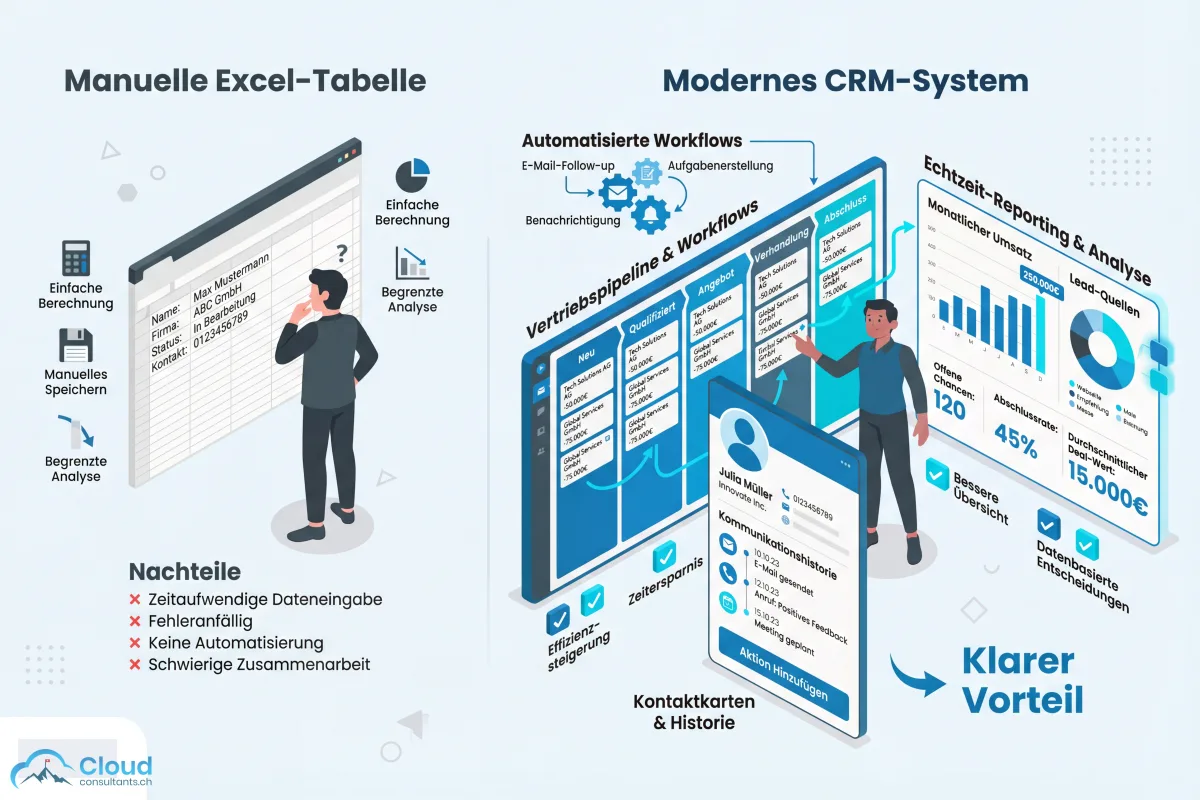
A CRM doesn’t just replace the Excel sheet — it changes how your team works with customers. The most important differences:
| Function | Excel | CRM |
|---|---|---|
| Contact management | Manual entry, no dedup | Automatic deduplication, structured fields |
| Communication history | None (notes column at best) | Emails, calls, meetings — assigned automatically |
| Opportunities | No stages, no pipeline value | Pipeline with stages, probabilities, forecast |
| Automation | Zero | Follow-up reminders, tasks, email workflows |
| Reporting | Manual pivot tables | Real-time dashboards, auto-refreshed |
| Access controls | All-or-nothing | Role-based permissions, field-level |
| Data protection | Hard to audit, no deletion logs | Audit trail, consent management, deletion workflows |
| Scaling | Breaks around 100 contacts | Works from 50 to 50,000 contacts |
According to a Salesforce customer survey (2022), companies report 26% higher employee productivity after CRM rollout. And according to HubSpot (2024), 32% of sales reps spend more than an hour every day on manual data entry — time that a CRM cuts drastically through automation.
From Excel to CRM in 5 steps
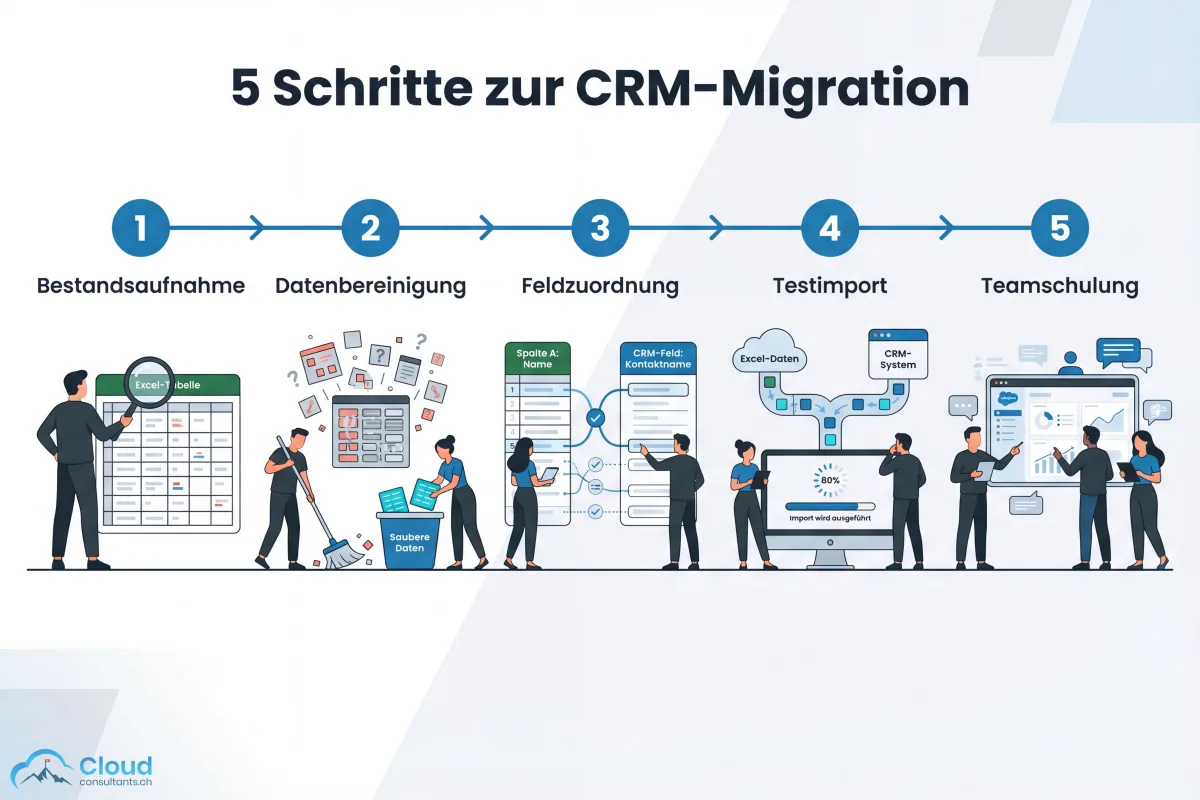
The switch doesn’t have to be a mega-project. With a structured approach, it’s doable in a few weeks.
Step 1: Inventory
Gather every place where customer data lives: Excel sheets, Outlook contacts, email inboxes, notebooks, ERP exports. Build a list of record counts and fields per source. Our piece on building a professional customer database describes the five data layers that enable a complete customer view.
Step 2: Clean the data
Remove duplicates, stale entries, and obviously broken data. Standardise formats — phone numbers, postcodes, company names. In our experience, you should plan at least 30% of project time for this step.
Step 3: Define field mapping
Which column in your Excel sheet maps to which CRM field? What’s missing in the current dataset, what won’t be carried over? This mapping is the bridge between the old and the new world.
Step 4: Test import and validation
Import a sample — about 50 contacts — into the new system. Check: are all fields mapped correctly? Are the relationships between companies and contacts intact? Only after a clean validation do you run the full import.
Step 5: Train the team and switch over
The final step is the most important: your team has to use the new system — not in parallel with Excel, but instead of it. Plan at least two to three hours of practical, hands-on training, work with real data, and set a clear cut-off date after which Excel is no longer the system of record.
The ZHAW Customer Management Study (2022) found that over two-thirds of companies in the DACH region already use CRM software — and the share is rising. If you’re still on Excel, you won’t fall behind tomorrow, but the gap widens every month.
Next step: from spreadsheet to professional CRM
Still running your customers in Excel or Outlook? Our Salesforce Quick Start takes you from spreadsheet to professional CRM in 30 days — including data migration, configuration, and team training.
Instead of a classic implementation project (3–6 months), we deliver what matters in 30 days. And if your team isn’t productive after 30 days, we keep working — at no extra cost.
Frequently asked questions
How long does customer management in Excel work?
Excel is fine for customer management as long as one or two people work with fewer than 50 to 100 active contacts. The moment multiple people need to access the same data simultaneously, opportunities need tracking, or automated follow-ups are required, Excel starts to break.
What are the risks of customer management in Excel?
According to a meta-study by Poon et al. (2024), 94 percent of all business spreadsheets contain errors. Typical risks include data loss through accidental overwrites, undetected duplicates, missing access controls, and no audit trail — which also makes GDPR/FADP compliance harder.
What does it cost to move from Excel to a CRM?
A professional CRM like Salesforce Starter Suite starts at $25 per user per month. Implementation costs depend on the approach: from CHF 5,000 for a guided Quick Start up to CHF 30,000–80,000 for a classic consulting project. According to Nucleus Research (2024), every dollar invested in CRM returns on average $3.10.
How do I migrate my Excel customer list into a CRM?
In five steps: inventory all data sources, clean up duplicates and stale entries, map fields between Excel and the CRM, run a test import with a sample, and finally do the full import with validation. Plan at least 30 percent of project time for data prep.
Which CRM systems are a good Excel replacement for SMBs?
For SMBs, scalable entry-level systems like Salesforce Starter Suite (from $25/user), HubSpot Free CRM, or Pipedrive work well. The decisive factor is that the system can grow with the business, so you don't face an expensive platform switch later.